Choose a gaming monitor by matching three specs to your graphics card: resolution first, refresh rate second, panel type third. A mid-range card that averages 80 frames per second at 1440p belongs in front of a 1440p 144-165 Hz monitor, not a 4K 240 Hz screen it can never feed. The most common buying mistake is paying for refresh the GPU cannot deliver — a monitor only shows frames your card produces.
This guide is a practical explainer, not a purchase recommendation. Prices and models change; the method for matching specs does not.
Why does resolution come before refresh rate?
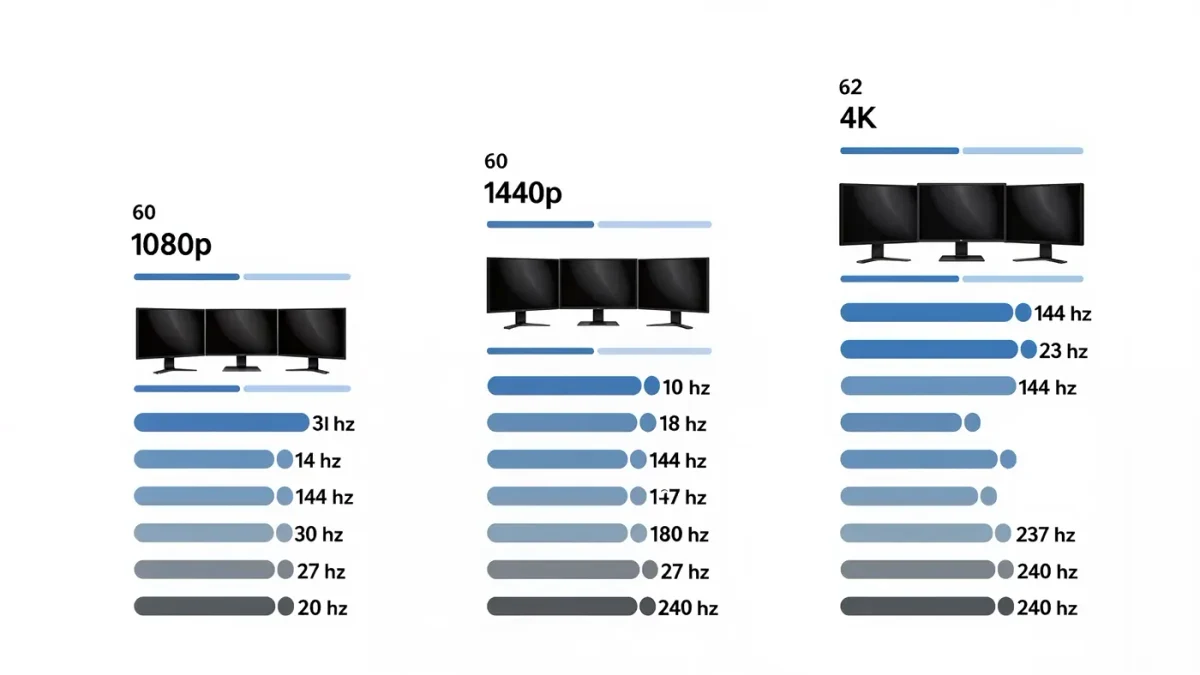
Because your graphics card sets the real limit. Every step up in resolution — 1080p to 1440p to 4K — roughly doubles or quadruples the pixel count the card must draw, which cuts frame rates hard. Check benchmarks for your card in the games you play. If your card averages around 100 fps at 1440p, a 1440p monitor at 144 Hz uses nearly every frame it can show; the same card on a 4K panel averaging 45 fps wastes most of a 144 Hz screen.
What refresh rate do you actually need?
Refresh rate is how many times per second the monitor redraws the image, measured in hertz. 60 Hz is the baseline. 120-165 Hz is the sweet spot for most players in 2026 — the jump from 60 to 120 is the largest perceived improvement in the entire spec sheet. 240 Hz and above matters mainly in competitive shooters, and only if your card holds those frame rates. Above roughly 240 Hz, most people cannot tell the difference in blind tests.
Which panel type should you pick?
Three types cover the market. IPS gives the best color and viewing angles with response times now fast enough for any genre. VA offers deeper contrast for dark single-player games but can smear in fast motion. OLED delivers near-instant pixel response and true blacks, at the highest price and with burn-in precautions for static HUD elements. For a first serious monitor, IPS is the safe general pick; OLED is the pick when the budget already covers the GPU.
Does response time matter as much as the box suggests?
Less than the marketing implies. The advertised number — often 1 ms — is a best-case measured in a specific mode, sometimes with heavy overshoot that adds inverse ghosting. What matters is measured full transition performance, which professional reviews test. Anything a reviewer measures under roughly 5 ms across transitions is fine for fast play; treat the box number as a floor, not a promise.
What size works at each resolution?
Size and resolution have to pair, or the image degrades. At 24 inches, 1080p looks sharp. At 27 inches, 1080p looks visibly soft — that size wants 1440p. At 32 inches and above, 1440p starts to show individual pixels at typical desk distance, so 4K fits better. Ultrawides add width, not height; a 34-inch ultrawide at 3440x1440 needs about the same GPU power as a flat 1440p screen.
| Resolution | Typical size | Refresh to look for | GPU needed (typical) |
|---|---|---|---|
| 1920x1080 | 24 in | 144-240 Hz | Entry to mid-range |
| 2560x1440 | 27 in | 144-180 Hz | Mid-range and up |
| 3440x1440 UW | 34 in | 144-175 Hz | Mid-range and up |
| 3840x2160 | 27-32 in | 120-240 Hz | High-end |
What is adaptive sync and do you need it?
Adaptive sync — AMD FreeSync or NVIDIA G-Sync — matches the monitor's refresh to the card's output, removing screen tearing without the input lag of old v-sync. Any modern gaming monitor supports one or both over DisplayPort, and the feature costs almost nothing extra now. Turn it on in the driver and leave it on; there is no downside at frame rates below the panel's maximum.
Which inputs and extras are worth checking?
Verify DisplayPort 1.4 or HDMI 2.1 depending on your device — HDMI 2.1 is what a modern console needs for 120 Hz at 4K. Beyond that, a good stand with height and tilt adjustment saves a mount purchase, and a backlight feature called local dimming only matters on high-end LCDs. Ignore built-in speakers; they are uniformly weak.
Is HDR worth paying extra for?
Only in the upper mid-range and above. True high dynamic range needs two things: enough brightness — at least 600 nits sustained for highlights — and enough local dimming zones or an OLED panel to control where that brightness lands. Monitors advertising HDR400 deliver the badge without the hardware, and the result often looks flatter than standard dynamic range with good contrast settings. If HDR matters for your single-player games, look for reviews that measure real brightness; if you mostly play competitive titles, skip the feature and put the money into refresh rate.
How should you set the budget split?
A working rule among builders: spend more on the graphics card than the monitor, but not by more than double. A strong card behind a 60 Hz panel wastes the card; a 240 Hz panel behind a weak card wastes the panel. If the budget forces a choice, put money into the GPU first and buy the faster monitor on the next upgrade — monitors outlive several graphics cards.